Are You Getting The Sidekick LX 2009?

Showing posts with label TDK Joker. Show all posts

2008-09-14

Are You Missing Out on Key Guards?

The key guard is the image displayed on your Sidekick when it's on idle. All my themes come with a key guard included and sometimes the key guard image is the best part of the theme but since the key guard is never loaded automatically on the new Sidekicks (08/LX/Slide), it seems a lot of people are missing out on them. I don't think anyone should miss out on key guards so I'll briefly explain how to load them on your phone.

1 - Load the theme to your phone as you normally would but do not disconnect the phone from your computer.

2 - Find the theme's folder and copy the JPG file (some themes may have more than one key guard). If you have thumbnails enabled, the key guard is always the biggest image on there.

3 - Paste the JPG file in the DCIM folder of your phone's memory card then disconnect the phone from your computer.

4 - On your Phone go to: Settings... Key Guard & Security... and Select the Image.

5 - Press and Hold the back arrow button to view the key guard!

You can also watch the video on "How To Put Themes On A Sidekick",at the end of the video there's a part that shows you how to load the key guard.
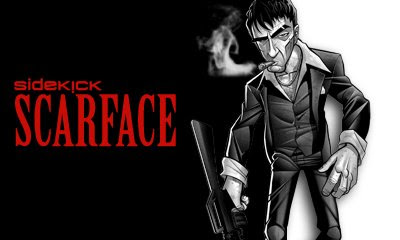


Here are some cool key guards for you to try!

Sidekick ScarfaceThe Joker ScarfaceScarface CartoonSk The Joker

2008-07-18

Editing Sidekick Theme.txt File

Have you ever downloaded a great looking sk theme with annoying hinge sounds? Maybe you downloaded a great looking theme with no hinge sounds at all, or you just simply want to change a theme's name so it's easy to find on your phone, you can do all of that by simply editing the "Theme.txt" file on that theme. The Theme.txt file is found on your theme's folder and is used to tell your Sidekick what to do with the files in the theme's folder. All you have to is remove a string pointing to a file, and your sidekick will never look for that file again. The lines below point to hinge sounds by the name of "hingeopen.mp3" and "hingeclose.mp3":

sound system-hinge-open-sound hingeopen.mp3
sound system-hinge-close-sound hingeclose.mp3

If you remove these two lines your phone will no longer look for hinge sounds and the default hinge sounds will be used. You can also make one file point to more than one place on your phone, The lines below tell the Sidekick to use "bg1.png" for both ring background and folder background.

bitmap ring-background bg1.png
bitmap ring-folder-background bg1.png

If you only point to one background and remove the second background string, you will end up with a custom background (bg1.png) and the default background on your phone for second. You can also use the Theme.txt file to hide images. The way to do this is by using a transparent image file. The most common case is hiding the phone splash, Most Sidekick theme maker's use a transparent phone splash image so they can take their theme's screen shot on the phone splash screen. If you need a transparent phone splash, my free bubbles have a transparent phone splash image included. Bubbles, icons and zoom effects can all be made transparent but If you use a transparent background, the result will be a white background. If you want to learn more about the theme.txt file watch the video, it is based on the sample theme.txt file available under downloads. The theme I used to make this video is "TDK Joker", If you like the theme follow the links at the end of the post.


The Dark Knight Joker