Are You Getting The Sidekick LX 2009?

Showing posts with label Downloads. Show all posts

2008-11-05

Converting Videos For Sidekick

The Sidekick LX got an update for video playback a few months ago and the new Sidekicks (08 & Tony Hawk) both come with video playback capabilities. The video quality is not all that so I hadn't bothered with it but I know a lot of people are interested in putting videos on their Sidekicks so I figured I'll show you how. If you already have the videos you want to put on your phone on your computer, all you have to do is download eRightSoft SUPER to encode the videos. Any video converter will do the same job but SUPER is free and already has codecs integrated so you won't have to download codecs in order to encode the videos.

If you don't have any videos to try this with, the video below shows you how to download your favorite videos from YouTube and encode them for playback on your Sidekick. The settings I used on SUPER may not be the optimal settings because I'm not sure what encoding format provides better playback on the Sidekick but in my other attempts, I had problems with video lagging at higher quality and audio ending up out of sync at lower quality. The settings shown in this video are simply the ones that I believe yielded the best results for me. Video and audio settings may differ depending on the source of the original video but the video scale should always be set to 400 x 240 for full screen video. If you have tried any other encoding format that you believe provides better quality videos feel free to leave comments and suggestions.


Download eRightSoft SUPER

Download YouTube Videos Using URL
**Add "&fmt=18" at the end of URL to download HQ (MP4) version of videos**

2008-11-03

Default Sidekick Themes

I know that most Sidekick users are probably bored of the default Sidekick themes but I still get a lot of people asking me for them so I decided to post them. These might come in useful if you're interested in making themes based on the defaults like my Cracked themes, Joker's Sidekick, Juicy 08 or my recent Hybrid theme. They might also appeal to you if you own a Sidekick LX and want the Sidekick 08 themes and vice-versa. I didn't want to post these as simply wallpapers so I added to all the themes my default like bubbles and icons but If you'll like the themes with the real defaults, I made a video you can watch below that shows you how to remove the custom ones and revert to the defaults. Click on the images below to download the themes!

2008-10-26

T-Mobile G1 Collection

As we all now the T-Mobile G1 is already out and although the "Are you switching to T-Mobile G1?" poll showed that most Sidekick users are not planning on switching, there were 1.5 million G1s sold to existing T-Mobile customers and I wonder what percentage of that 1.5 million had Sidekicks. Anyway, for those who want to switch but are stuck with the Sidekick because of many possible reasons, I've put together a collection of themes based on the original wallpapers from the T-Mobile G1. Due to the major differences in the operating systems of the phones, it is impossible to make the themes any better but I think this is good for now, feel free to leave any suggestions. The collection includes 14 themes available for the Sidekick LX/08 and the Slide, click on the images below to download.

2008-10-20

Halloween Stewie

I wanted to make a Stewie Griffin theme to put on my Sidekick for Halloween but Family Guy doesn't have any Halloween episodes so I couldn't find any Halloween related Stewie pictures. Therefore, I decided to dress Stewie as Jack Skellington for my theme. The video below shows how this was done but it is NOT a tutorial on how to do it. If you are familiar with Photoshop, you should be able to get ideas on how it was done just by watching.


The Stewie Skellington theme is available for all Sidekicks and I also made wallpapers for your desktops, Happy Halloween!

LX/08-------------------SLIDE-------------------SK3

LX-08SlideSk3


2008-10-17

Icon Psds

In the last few months I've been using icons on some of my themes that look similar to the Sidekick's default icons but vary in colors. I've decided to share my PSDs so you can edit these icons to your liking. The set includes default like Im, Sms and Apps icons. I did not include Pim & Games icons because those can simply be switched with any pen and controller images. The PSDs come in three sizes SM, LG and XLG. The regular sizes are SM & LG but I've been using XLG icons lately on some of my themes so I decided to include those too. The PSDs are meant to be edited on Adobe Photoshop and the icons may look different if edited with GIMP.

Icon Psds

2008-09-14

Are You Missing Out on Key Guards?

The key guard is the image displayed on your Sidekick when it's on idle. All my themes come with a key guard included and sometimes the key guard image is the best part of the theme but since the key guard is never loaded automatically on the new Sidekicks (08/LX/Slide), it seems a lot of people are missing out on them. I don't think anyone should miss out on key guards so I'll briefly explain how to load them on your phone.

1 - Load the theme to your phone as you normally would but do not disconnect the phone from your computer.

2 - Find the theme's folder and copy the JPG file (some themes may have more than one key guard). If you have thumbnails enabled, the key guard is always the biggest image on there.

3 - Paste the JPG file in the DCIM folder of your phone's memory card then disconnect the phone from your computer.

4 - On your Phone go to: Settings... Key Guard & Security... and Select the Image.

5 - Press and Hold the back arrow button to view the key guard!

You can also watch the video on "How To Put Themes On A Sidekick",at the end of the video there's a part that shows you how to load the key guard.


Here are some cool key guards for you to try!

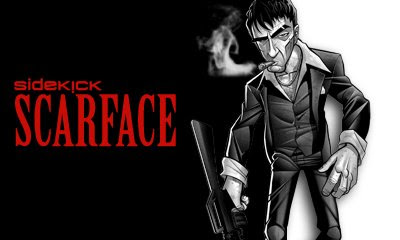
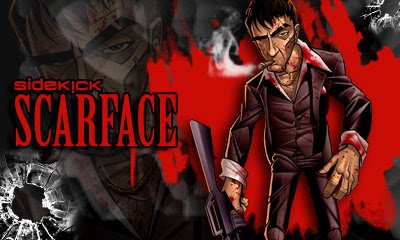
Sidekick ScarfaceThe Joker ScarfaceScarface CartoonSk The Joker

2008-09-10

How To Add Key Guard To Phone Splash

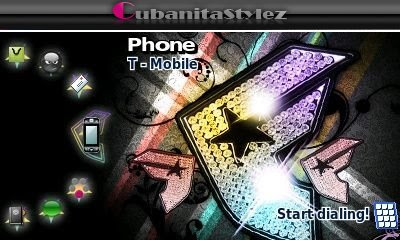
I recently posted some phone splashes for the sk08, now I'm posting some splashes for the LX and the Slide. I figured nobody really wants the default LX & Slide phone splashes but I've also included splashes for the Slide Scarlet and LX Tony Hawk which might come in handy if you like phone splashes in your themes. The real reason why I'm posting these splashes is for customizing. Obviously, If you wanted a theme with the default splash, all you have to do is not use one and the default will be loaded but what if you can make your splash match your actual theme or/and shell? I'm sure more people will be using splashes specially sk08 users.

The video below will show you how to customize the phone splashes to display the same key guard you have on your phone replacing the default T-mobile/Hiptop key guard usually on the splashes. In the beginning of the video, I also showed an easy way to change the shell color of your phone splash to match your real shell. You'll notice in this video I used a different splash for the sk08, similar to the one that comes with themes from the Danger Download Catalog. You can download the new set below! The key guard used in this video is from the Kidrobot x The Simpsons theme.

Sk08 PhoneSplash v2
SK Phone Splash Pack


2008-09-09

Grime Is the Winner!

The winner of the Cracked theme poll was Grime so here is the Cracked 08 Grime theme. This is similar to my previous cracked themes over at sklxthemes.com but now with some improvements. This theme is meant to make your phone look messed up but It will not damage your phone in any way. It has tweaked/clipped versions of the original 08 hinges, the bubbles don't move but I left the default icons this time for usability. If you'd like the version with no icons leave me a comment. This theme has cracked zoom effects and the second background is now completely cracked as you can see on the screen shot. A cracked T-Mobile key guard is included. The poll is still running so cast your vote for the next cracked theme!

Cracked 08 Grime

2008-08-29

Matching Shell Phone Splashes

One of the most annoying things about the new Sidekick 08 is the default yellow shelled phone splash, for those not aware the phone splash is the image you see when you have "Phone" selected on the main screen. Although the yellow shelled phone splash matches perfectly with the shell that comes with the Sk08, I'm sure that most Sk08 owners have already gotten new shells. The custom shells sold over at Sidekickshells.com have Black, White or Pink base (Not Yellow), that means if you have a custom shell most likely it doesn't match your phone splash. I believe T-Mobile/Danger did this to be able to sell more themes on the catalog since I've seen a lot of themes now that come with the custom phone splash. I figured it wasn't fair they have matching phone splashes on their themes and we are stuck with the default yellow shelled phone splash so I've made a set with the three base colors for custom shells (Black, White & Pink). All you have to do is copy the desired PhoneSPLASH.png file into your theme's folder and make sure you have the string below on your Theme.txt file.

bitmap chooser-phone-splash-screen phonesplash.png

Leave me a comment if you're interested in different colors.


Sk08 Custom Phone Splash

2008-08-23

Custom Sidekick 08 Shells

Everyone knows the hottest thing about the Sk08 is that you can change the shell on it. I'm sure most of the Sk08 users are already aware of custom shells & sidekickshells.com so this is not a tutorial video or anything like that but I thought It'll be cool to show you how you can make custom shells out of your favorite Sidekick themes. I've already ordered a couple shells, the quality is not pristine but they look decent for $14.99.

In this video I made shells to match three of my recent themes, all the pictures I used to make the shells are included with the themes so if you like how it looks, download the theme by clicking on one of the images below and create your own! The images to use will most likely be BG1, BG2, foldec, and phone splash depending on the theme. This can be done with any theme from Sk08themes.com and SkLXthemes.com.

Graduation Shell
(click on image for the theme)

Graduation Shell

Hi Hater Shell
(click on image for the theme)

Hi Hater Shell

Juicy Couture Shell
(click on image for the theme)

Juicy Couture Shell

2008-08-05

How To Make Sidekick Icons

Making icons for the Sidekick is the same as making icons for any other purpose. Icons are just small images used to represent a program, file, and etc. therefore any image can be converted into an icon. The only difference between regular images and icons is that regular images do not contain an alpha channel. The alpha channel is used to represent up to 256 levels of transparency. When you add the alpha channel to a regular image you can make parts of that image be transparent or semi-transparent. If you look at the default instant message icon image on your Sidekick you will see a yellow smiley, but if you open the image in Photoshop or GIMP you will see the yellow smiley inside a squared transparent background. If you were to save that same icon in JPG or BMP format the transparent background will become white, that is because JPG and BMP do not store alpha channel information.

I've seen many themes posted with icons with a squared black/white background, that is becuase they have uploaded JPG or BMP files to the theme creator on the SkLX/SkSlide websites. The theme creator does not remove backgrounds for you, so do not expect to get an icon with a transparent background from there unless that's what you're sending. Formats that support the alpha channel include PNG, ICO, PSD, GIF and others, for Sidekick themes you only need to work with the PNG format.

In the video below I will show you how to add the alpha channel to regular images so that they can be saved in PNG format and used as icons. Part 1 of the video shows how to do it on Photoshop & Part 2 shows how to do it on GIMP. If you're watching this video I assume you already know Photoshop/GIMP basics and I will not go into detail about resizing and fitting the images. This video is no way near a tutorial on how to extract images (remove backgrounds), there are hundreds of ways to extract images, If you do not know how to extract images, I suggest you watch videos on how to do it because in this video I'll use the simplest method which does not necessarily yield the best results. If you're watching this video to learn how to make icons for your Sidekick themes, you should download one of the theme templates below:


The icons made in this video can be found in my PACMAN theme.

2008-08-02

Sidekick Screen Shot Creator

When I first started making Sidekick themes, I was only making themes for the Sidekick LX. Once the Sidekick Slide came out I started getting requests to convert my themes, I did not own a Sidekick Slide so I was not comfortable making themes for it because I didn't even know how they would look on the device. I decided to start making fake screen shots for the Sidekick Slide. The fake screen shots will not only help me assure that the theme will look good on the device, but also allow me to show people what the theme will look like before they download it. The screen shots for every theme I've posted for the Sidekick Slide so far are fake, but you wouldn't be able to tell the difference between a real screen shot and a fake one. Now I've organized my psds so that you can also create your own screen shots. The psds are compatible with both Photoshop and GIMP but only on Photoshop you will be able to edit the signature on my custom top bar. Watch the video below if you're not familiar with layers so you can understand better how to use the psds.

2008-07-18

Editing Sidekick Theme.txt File

Have you ever downloaded a great looking sk theme with annoying hinge sounds? Maybe you downloaded a great looking theme with no hinge sounds at all, or you just simply want to change a theme's name so it's easy to find on your phone, you can do all of that by simply editing the "Theme.txt" file on that theme. The Theme.txt file is found on your theme's folder and is used to tell your Sidekick what to do with the files in the theme's folder. All you have to is remove a string pointing to a file, and your sidekick will never look for that file again. The lines below point to hinge sounds by the name of "hingeopen.mp3" and "hingeclose.mp3":

sound system-hinge-open-sound hingeopen.mp3
sound system-hinge-close-sound hingeclose.mp3

If you remove these two lines your phone will no longer look for hinge sounds and the default hinge sounds will be used. You can also make one file point to more than one place on your phone, The lines below tell the Sidekick to use "bg1.png" for both ring background and folder background.

bitmap ring-background bg1.png
bitmap ring-folder-background bg1.png

If you only point to one background and remove the second background string, you will end up with a custom background (bg1.png) and the default background on your phone for second. You can also use the Theme.txt file to hide images. The way to do this is by using a transparent image file. The most common case is hiding the phone splash, Most Sidekick theme maker's use a transparent phone splash image so they can take their theme's screen shot on the phone splash screen. If you need a transparent phone splash, my free bubbles have a transparent phone splash image included. Bubbles, icons and zoom effects can all be made transparent but If you use a transparent background, the result will be a white background. If you want to learn more about the theme.txt file watch the video, it is based on the sample theme.txt file available under downloads. The theme I used to make this video is "TDK Joker", If you like the theme follow the links at the end of the post.


The Dark Knight Joker

2008-07-15

How To Make Sidekick Themes

The question I get asked the most by Sidekick users is "How Do I Make A Theme?". The Truth is that it isn't really all that hard, Anyone with a little time on their hands can make a Sidekick theme. I'm not saying that everyone can make a master piece but you can definitely make your own favorite theme. In order to make things easier, I created theme templates for the Sidekick LX & Sidekick Slide. The template is a regular theme but it contains information instead of images of your favorite clothing brand or music artist. When you put this theme on your phone you can identify all the images so you know exactly what goes where. The idea is once you know where every image goes, you can replace the images with whatever you want. When I first made a theme, that was the way I did it, so it shouldn't be any harder for you. All you have to do is duplicate the theme template and replace everything in there with whatever you want!

This video has two parts, In the first part I will show you how to make a theme with the theme template and the help of image editing software (remember GIMP is free); In the second part I'll show you how to make a theme with SkLXthemes' or SkSlidethemes' theme creator. Making Sidekick themes with the theme creator is a lot easier and faster but you will not be able to use hinge sounds, zoom effects or SMS icon with this method. This video is meant to show you how to put a theme together and it doesn't go into details about making bubbles, or hinge sounds, If you need help with that you should watch my other videos.

2008-07-07

Making Bubbles With GIMP

I've already posted a video on "How To Make Bubbles With Adobe Photoshop" but since not everyone is able to afford this program, Now I will show you a similar tutorial for GIMP.

GIMP is an acronym for GNU Image Manipulation Program. It is a freely distributed program for such tasks as photo retouching, image composition and image authoring.

It has many capabilities. It can be used as a simple paint program, an expert quality photo retouching program, an online batch processing system, a mass production image renderer, an image format converter, etc.

GIMP is expandable and extensible. It is designed to be augmented with plug-ins and extensions to do just about anything. The advanced scripting interface allows everything from the simplest task to the most complex image manipulation procedures to be easily scripted.

In this video I will show you the basics on making a clear (see-through) bubble on GIMP and how to recolor it to black. Once again, this is only basics and is not a standard procedure. The bubbles can be done in other ways, you have mix what you learn and your creativity so you can get exactly what you want!


Bubbles Made On Gimp

2008-07-03

How To Fit Images

It sounds like something very simple to do yet, It seems many theme makers still can't figure out how to fit images. The easiest way to fit an image is obviously resizing it, but resizing doesn't always work. If you take a squared wallpaper of a ball and resize it for a rectangular shaped screen, the ball is going to start looking more like an egg. In this video, I will show you how to use the aspect ratio lock feature on Adobe Photoshop to keep the proportions of your images. This video also includes a couple tips you can use for filling space when the image doesn't fill up your wallpaper space. The wallpapers I made in this video are for the Sidekick LX, you can download the finished wallpapers below!

P.S. I used the Lil Wayne wallpaper below for Tha Carter III theme which can now be downloaded for SkLX & SkSlide.


Lil Wayne Tha Carter III

Mariah Carey Wallpaper

2008-07-02

Mac OS X Collection

If you are constantly looking for new themes for your Sidekick, then you most likely have already seen my Mac OS X Leopard themes for the LX, Slide and, SK3. These themes really didn't require much picture editing like my usual themes, since they're based on the default Mac OS X Leopard wallpaper but, nevertheless it took me sometime to get the themes done. The thing I loved the most about this theme on my LX was the hinge sounds because anyone who knows about Sidekicks would hear a Sidekick yet, anyone used to Mac computers would think I had a mini Mac on my hands. Given the success of my Mac OS X Leopard themes, I decided to add more Mac OS X themes to the collection. The addition includes Leopard Server, Time Machine Cosmos, Grass and Zebra. These are only my favorite OS X wallpapers, leave me a comment if you would like to see any other OS X wallpaper added to this collection.


Sidekick LX - Sidekick Slide - Sidekick 3

***UPDATED***
(8/13/08 - Added Sk08 Collection)
All the themes are included in the same zip file.


Mac OS X Sk08 Collection

2008-07-01

Free Sidekick Icons Pack

These icons are free for your personal use but don't forget to give me credit for my work if you decide to post any of the themes you make using these icons anywhere. If you don't feel like renaming the icons to match your Theme.txt file just add or replace these lines on your Theme.txt file:

bitmap chooser-category-im-large imlg.png
bitmap chooser-category-im-small imsm.png
bitmap chooser-category-games-large gameslg.png
bitmap chooser-category-games-small gamessm.png
bitmap chooser-category-apps-large appslg.png
bitmap chooser-category-apps-small appssm.png
bitmap chooser-category-pim-large pimlg.png
bitmap chooser-category-pim-small pimsm.png
bitmap chooser-category-sms-large smslg.png
bitmap chooser-category-sms-small smssm.png

2008-06-28

Free Bubbles For Your Themes

If want to make your own themes but don't feel like making bubbles, feel free to use my bubbles for your personal themes but remember to give me credit for my work if you decide to post your themes anywhere.


Clear Bubbles


Clear Bubbles
These bubbles will match any theme,
I wouldn't use them
on white backgrounds because they become invisible.


Black Bubbles


Black Bubbles
These bubbles look better on dark themes,
They can easily match any theme with black in it.

2008-06-24

Top 5 Favorites

I have made many themes for my personal use and to share with the sidekick community. I will obviously not post all my old themes on here but to start-off the blog I'm going to give you my personal Top 5 Favorite themes.

#1 - Cracked LX

Cracked LX

Sidekick LX - Sidekick Slide - Tony Hawk SkLX

#2 - Famous Stars and Straps

Famous Stars and Straps

Sidekick 3 - Sidekick LX - Sidekick Slide

#3 -Nintendo

Nintendo

Sidekick 3 - Sidekick LX - Sidekick Slide

#4 - Alienware

Alienware

Sidekick LX - Sidekick Slide

#5 - Ice Cream

Ice Cream

Sidekick LX - Sidekick Slide